


Google Calendar
4.698.47K Reviews
App Specs
- Version
- Varies with Device
- Updated On
- License
- Free
- Downloads
- 5,000,000,000+
- Developer
- Google LLC
- Categories
- Productivity
- Platform
- Android, iOS
Screenshots
 Analysis by AppCompare
When several people share a home, the hard part is often not remembering an appointment but figuring out whose plan it is, who needs to know, and whether an update has reached everyone. I find Google Calendar most useful when it becomes a shared view of real commitments rather than a second place to keep an endless to-do list. A school pickup, a work call, and a repair visit can all compete for the same afternoon; seeing them together makes clashes easier to catch before they become household confusion.
A shared schedule works best when its purpose is clear
For a household, I would start by deciding what belongs on a shared calendar and what should stay personal. A calendar can help coordinate a recurring activity or a one-off appointment, but it is not automatically a complete family-management system. Before inviting anyone, agree on a simple convention: use clear event names, include the practical details people need, and avoid adding private plans simply because a shared view is convenient.
This distinction matters on a shared tablet or phone, too. A device that several people can open is not the same thing as a shared account, and I would avoid treating one signed-in profile as a neutral family space. Each person’s calendar can reflect their own commitments and boundaries; sharing should be deliberate, not a shortcut that exposes more of someone’s schedule than they intended.
Guides and Analysis on Google Calendar
Keep account boundaries in mind during setup
Google Calendar is made by Google LLC and is free to use. Signing in with a Google account gets you started, and that simplicity is a real advantage if your household already uses Google services. It also means the account choice deserves a moment of thought: make sure you know which account is active before creating an event or changing a calendar, especially if you switch between personal and work accounts on the same device.
If a child or another family member uses the app, I would set it up with their own appropriate account and explain what a calendar entry reveals: where someone plans to be, when they are busy, and sometimes who they are meeting. The app’s Everyone age rating is useful context, but it is not a substitute for household rules about accounts, device access, or what information belongs in an event. I would keep sensitive details out of event titles and share only what others need to coordinate.
Coordination without turning every plan into a notification
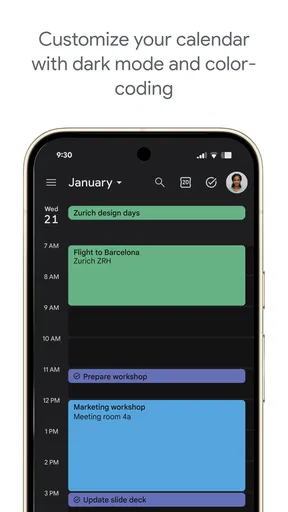
A shared schedule is only helpful if people can read it and keep it current. Color-coding can make work, home, and personal commitments easier to distinguish at a glance, but colors should have a consistent meaning if other people rely on them. I also recommend choosing reminders with care. A notification shortly before a time-sensitive pickup may help; repeated alerts for every low-priority event can train everyone to ignore them.
Google Calendar suits people who already depend on Google accounts and want appointments, recurring routines, and meeting plans in one familiar place. Compared with a paper diary, it is easier to update and check across devices, though paper can be calmer for someone who wants a private, offline planning ritual. Compared with a dedicated household organizer, it feels more like a flexible calendar than a purpose-built chore or meal-planning hub. If your main need is assigning jobs, tracking shopping, or managing household tasks, a specialized tool may be a better fit alongside it.
Worth Reading Before You Choose

QuizzLand Review: A Good Fit for Short Trivia Breaks, Not Every Player

Basketball Stars: Multiplayer Is Fast, but Can It Recover When Matches Go Wrong?

WEBTOON Turns Phone Updates Into a Better Reading Routine

Link to Windows Runs on Shared Habits, Not Social Feeds

How Alibaba.com Dominates the B2B Marketplace

Metro's Quiet Rise: Redefining Mobile Communication
Who will appreciate it—and who may not
I would recommend it to a household with mixed schedules, people who need to check plans while away from home, or anyone who wants a shared overview without learning a complicated planning system. It is also practical for a person coordinating care or appointments across relatives, provided everyone agrees on what to share. The app has a 4.7 average from around 4.6 million ratings, and it has been installed over 5 billion times, but those figures do not change the basic question: does your group actually want to maintain a digital calendar?
Someone who dislikes account-based tools, prefers a paper planner, or only needs a simple reminder list may find the setup unnecessary. Likewise, a calendar cannot resolve unclear responsibilities by itself. If people do not add changes or check the schedule, the shared view can become misleading. I would treat it as a dependable reference that people maintain together, not as proof that everyone has seen or accepted a plan.
Google Calendar is a productivity app for Android and iOS, and its long history—the app was released on October 17, 2012—helps explain why it feels familiar to so many users. Its strengths are everyday access, readable schedules, and useful ties to other Google services. The trade-off is that a broad, flexible calendar asks you to make your own conventions; it does not decide what a household should share or how it should divide responsibilities.
First Impressions and Setup
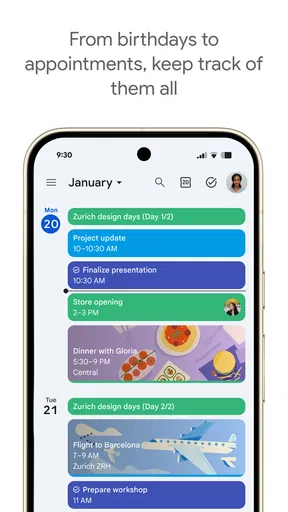
Getting started with Google Calendar is as smooth as butter. Just sign in with your Google account, and voilà, you’re in. What struck me first was its clean, user-friendly interface. It's not cluttered or overwhelming, making it super easy for even the least tech-savvy among us to navigate. The setup is a breeze, and syncing with other Google services is seamless. You can literally watch your schedules magically appear like a well-orchestrated symphony.
Features that Stand Out
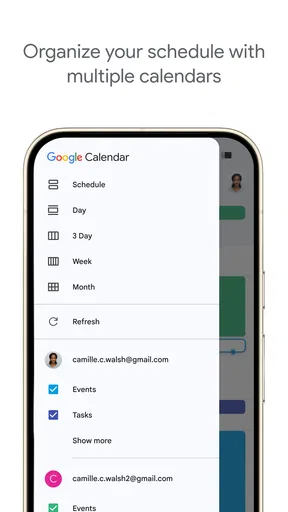
Now, onto the fun part—the features! One of the coolest things I found is the ability to create multiple calendars. Whether it’s work, family, or personal goals, you can keep them separate yet under one umbrella. And the color-coding? Absolute genius! It’s like a rainbow of organization at your fingertips.
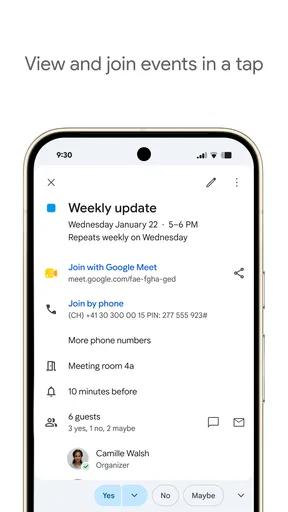
Another handy feature is the "Goals" section. Ever wanted to learn a new language or start a workout routine? Just set a goal, and Google Calendar finds the time for you. It’s like having a personal assistant that nudges you in the right direction. Not to mention the integration with Google Meet is perfect for scheduling those virtual meetings without breaking a sweat.
Usability and Performance
In terms of performance, Google Calendar is snappy and reliable. I’ve yet to experience any lag or crashes, which is a huge plus. The app updates in real-time, ensuring that you and your coworkers or family members are always on the same page. Plus, the notifications are customizable, so you’ll never miss an appointment—unless you want to, of course!
The search function is another lifesaver. Looking for that meeting from three months ago? Just type in a keyword, and it pops right up. It’s the best way to keep track of past events without scrolling through endless dates.
Accessibility and Compatibility
If you’re someone who’s constantly on the move, the mobile app is a godsend. It’s available on both Android and iOS, so no one’s left out. The interface adapts beautifully between devices, ensuring you have the same experience whether you’re on your phone or computer. Plus, offline access means you can check your calendar even when you’re off the grid. It’s like having your schedule in your back pocket at all times.
Customizability and Personal Touches
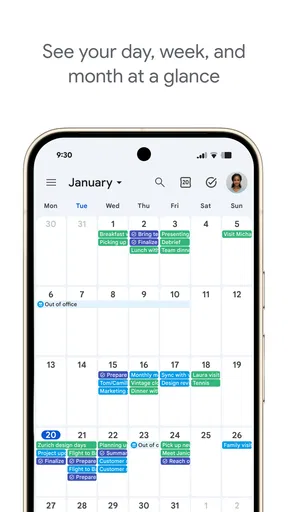
One of my favorite aspects is the ability to customize notifications and reminders. You can set them to your liking—be it a gentle nudge or a persistent alarm. And if you’re into personalizing your apps, you can even adjust the view settings to show the calendar in day, week, or month formats. It's the little touches that make it feel like it's truly yours.
Let's not forget the "World Clock" feature, which is perfect if you're working across different time zones. You can keep track of global times, ensuring you're never late for that international call. It’s these thoughtful additions that make Google Calendar more than just a scheduling tool; it’s a companion in productivity.
Final Thoughts
In a world where time is of the essence, having a tool like Google Calendar feels like having a secret weapon. It’s simple yet powerful, with just the right amount of features to keep you organized without feeling overwhelmed. Whether you’re managing work projects, family events, or personal goals, this app has got your back.
If you haven’t already, give Google Calendar a spin. Trust me, once you see how effortlessly it manages your chaos, you’ll wonder how you ever lived without it. So, what are you waiting for? Dive into the world of organized bliss!
Pros
- Seamless integration with other Google services.
- Customizable notifications for events and reminders.
- Supports multiple calendars for better organization.
- Easy sharing of calendars with family or colleagues.
- Works offline for viewing and editing events.
Cons
- Requires a Google account to access features.
- Limited customization for calendar themes.
- Occasional sync issues with third-party apps.
- No native task management integration.
- In-app advertisements can be distracting.
FAQs for Google Calendar
What features does Google Calendar offer for organizing my schedule?
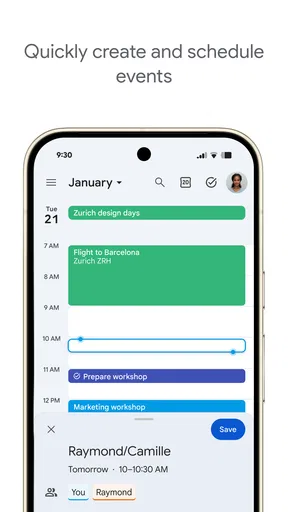
Google Calendar provides a range of features to help you stay organized, including event scheduling, reminders, goal setting, and integration with other Google services like Gmail and Google Meet. You can create multiple calendars, share them with others, and even access your schedule offline. The app also syncs across devices, ensuring your calendar is always up-to-date.
Is Google Calendar free to use, and are there any premium features?
Google Calendar is free to use for individual users, offering a comprehensive set of features without any cost. There are no hidden fees or premium features in the standard version. However, businesses using Google Workspace (formerly G Suite) might have access to additional administrative and collaboration features tailored for enterprise use.
Can I use Google Calendar offline, and how does it sync my data?
Yes, Google Calendar can be used offline on both desktop and mobile devices. When offline, you can view events, make edits, and add new events. Once you reconnect to the internet, any changes made offline will automatically sync across all your devices, ensuring your calendar is always current.
How secure is my information on Google Calendar?
Google Calendar employs strong security measures to protect your data. It uses encryption to safeguard your information both in transit and at rest. Additionally, you can control who sees your calendar by adjusting sharing settings. Google also offers two-step verification for added account security, ensuring that your data remains protected.
Can Google Calendar integrate with other apps and services I use?
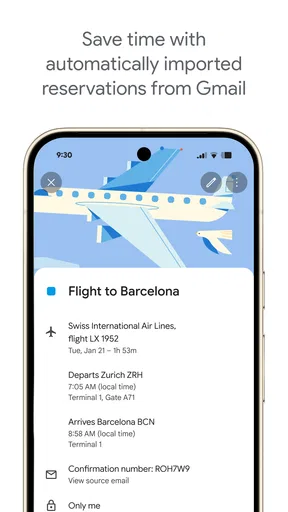
Yes, Google Calendar integrates seamlessly with a variety of apps and services. It works well with other Google products such as Gmail, Google Meet, and Google Tasks. Additionally, it supports integration with third-party apps like Zapier, Trello, and Slack, allowing you to streamline your workflow and enhance productivity.


